
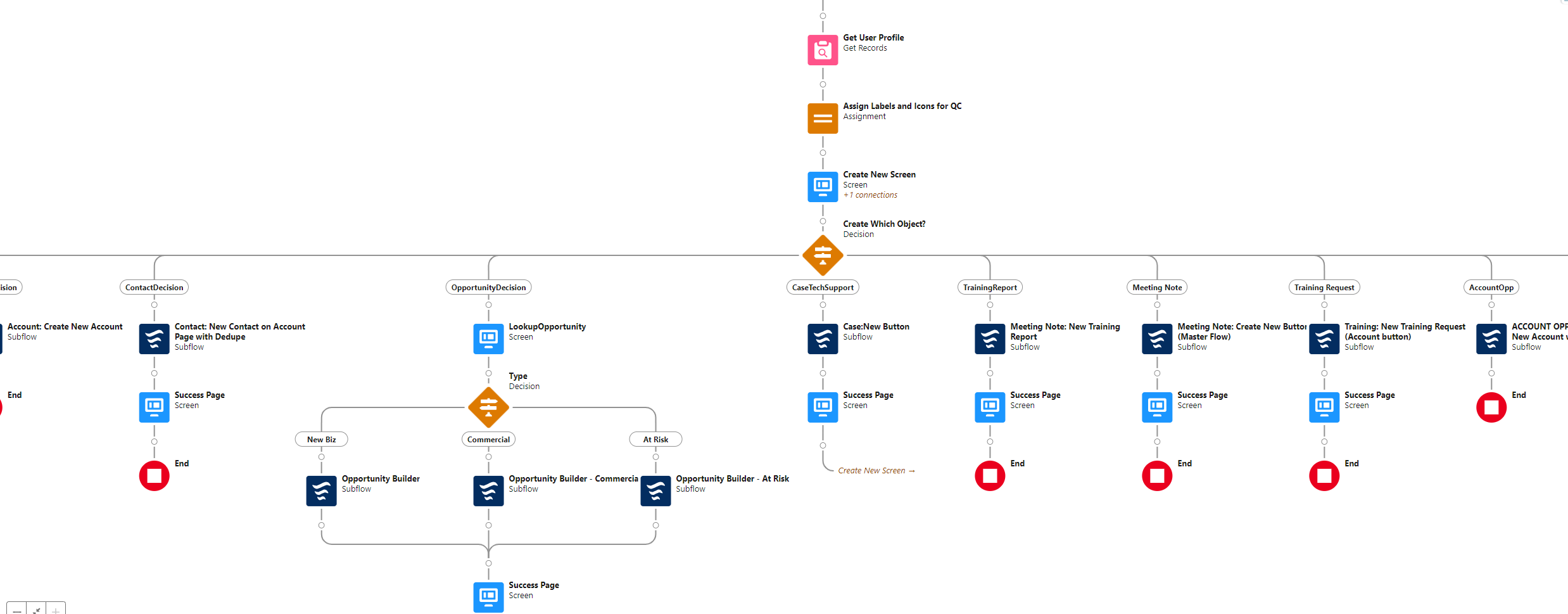
Quick Create records
with quick choice from USF
Allow your users to create records quickly, directly from the home page.
Using the QuickChoice component from the UnofficialSF site, you can make it visually appealing by adding icons and buttons. Include your flow in the mobile navigation menu for users who travel frequently.
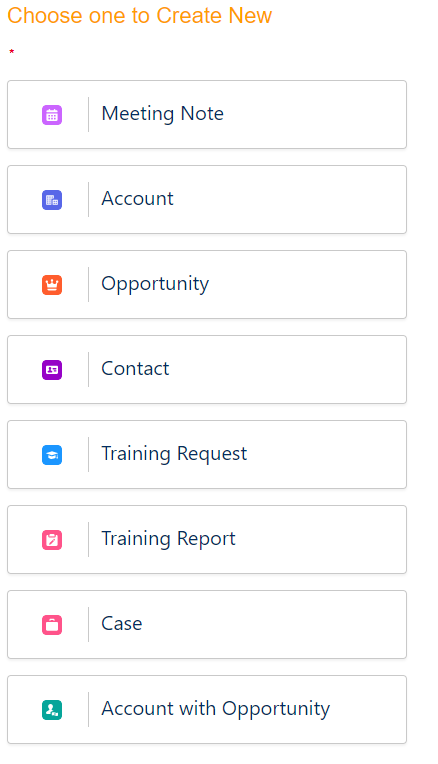
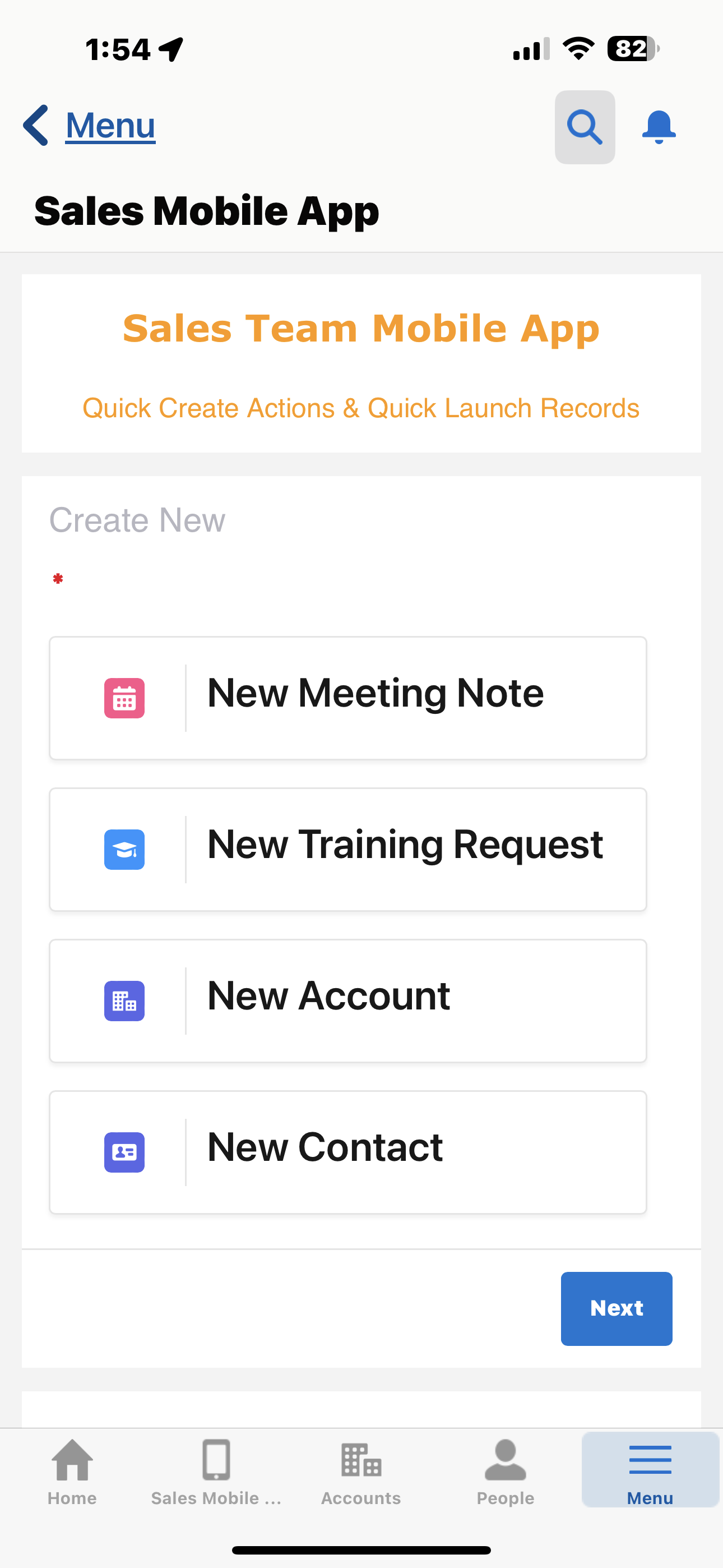
Once you install the QuickChoice component into your org, you will have it available in your screen flows. To utilize the Label with Icons functionality – create 2 record collection variables (allowing for multiple records). The first records collection will be to assign the labels and the second record collection will be to assign the icons. For the Icons, use Lightning Design Framework: Icons using a nomenclature of:
Icon Category:Icon Name
example
standard:event

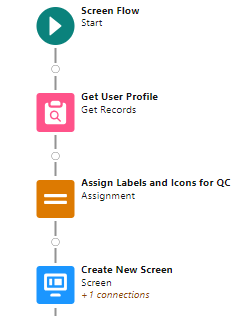
Add an Assignment Element to your flow, somewhere before the screen flow element. Assign the Labels like the example below. colvarLabels is the record collection variable I’m Adding each Label too. I added Labels for:
Meeting Note (custom object)
Account
Opportunity
Contact
Training Request (custom object)
Training Report (custom object)
Case
Account with Opportunity
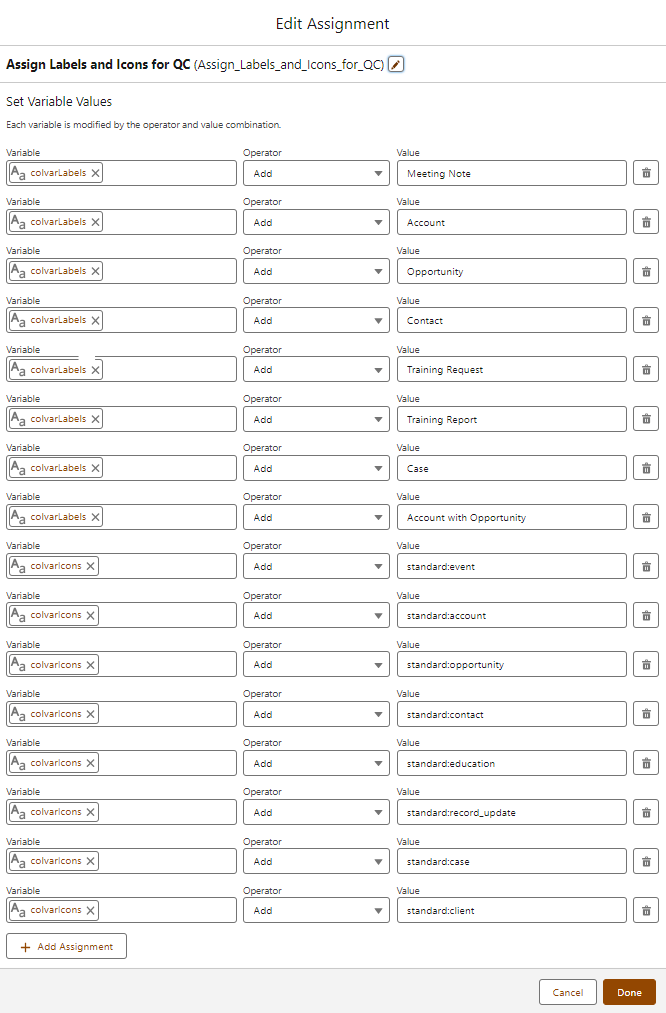
colvarIcons is the record collection variable I’m Adding each icon too. I’ve found that in order to match the Labels with the correct Icon, they have to be in the same order.
I added Icons for:
standard:event (for the Meeting Note Label)
standard:account (for the Account Label)
standard:opportunity (for the Opportunity Label)
standard:contact (for the Contact Label)
standard:education (for the Training Request Label)
standard:record_update (for the Training Report Label)
standard:case (for the Case Label)
standard:client (for the Account w/ Opportunity label)
In your Screen Flow, pull in the Quick Choice Component from the ‘Custom’ section on the sidebar

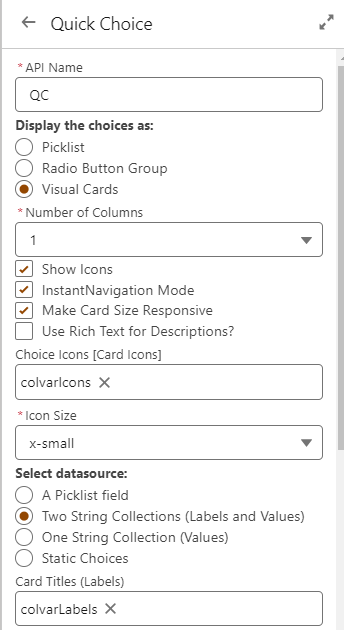
In the Quick Choice settings, I’ve set the display as ‘Visual Cards’ and number of Columns to ‘1’. I’ve opted to show Icons with Instant Navigation Mode turned on. I’ve also turned on responsiveness.
Now, the 2 record collections variables you assigned Labels and Icons to in the previous Assignment element, are used here. pull in those collection resources in the respective fields for Choice Icons (Card Icons) and Card Titles (Labels). The datasource should be set to ‘Two String Collection [Labels and Values]’.
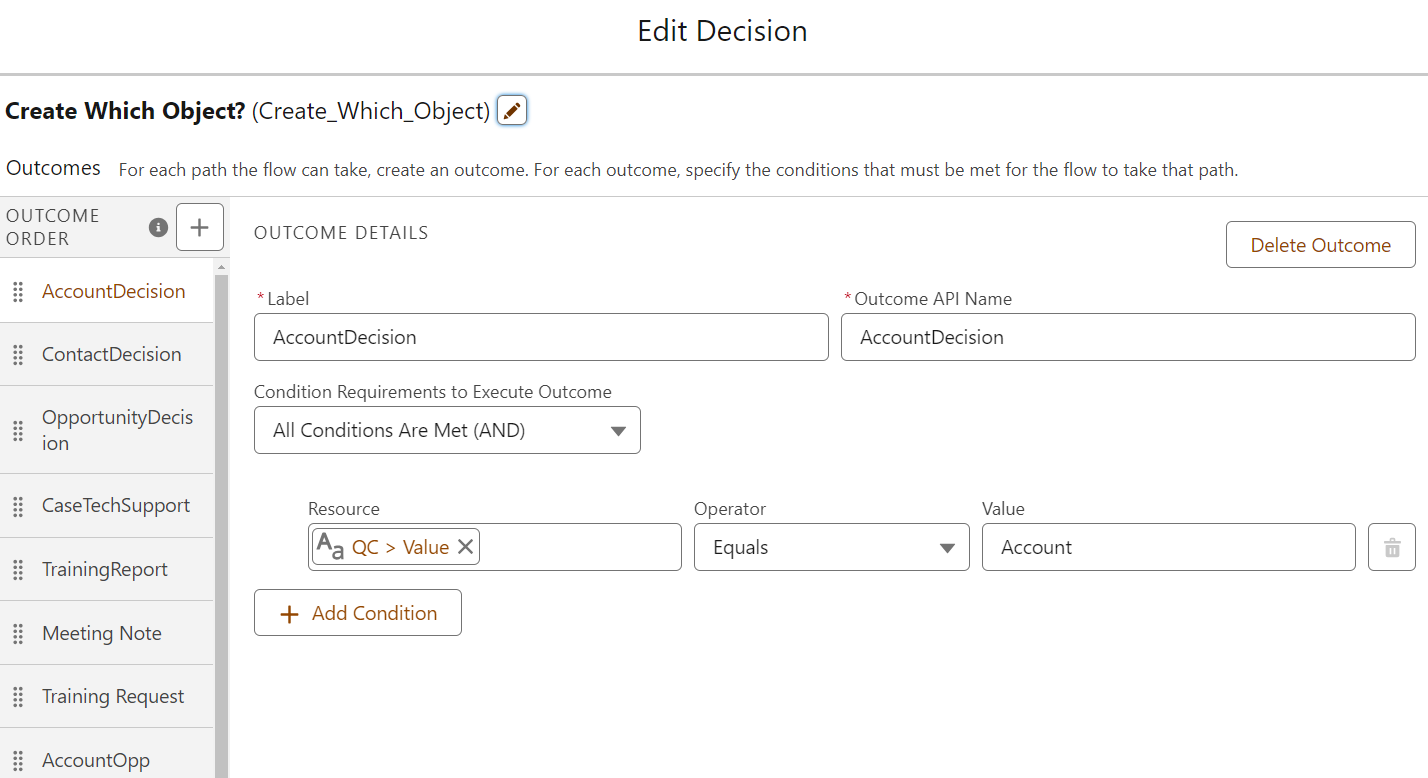
After your screen flow element, use a decision element that looks at the quick choice value that was selected from the user.
The resource is the api name of the quick choice component>value (the value being the Label you used for that choice). Create a Decision for each of the Labels you assigned values for from the assignment element step.
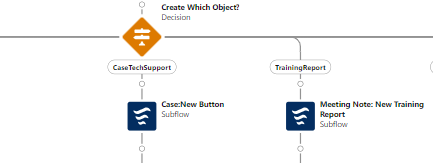
By creating individual screen flows that you can pull in as Subflows, the maintenance can be reduced for any future updates you or future admins of your org will need to make due to only having to make changes in a single flow, rather than multiple flows.
I hope you found this post helpful.
If you have questions or feedback please leave me a comment below!

Great use case for QuickChoice.
LikeLike
I hope you don’t mind but I added a link to this article to the documentation page for QuickChoice.
LikeLike
I don’t mind at all! thanks for the link!
LikeLike