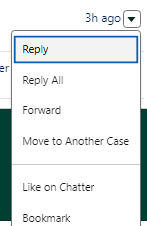
There was Idea that was posted in 2008. It has 5,620 Points and is still open (now finally on the roadmap). The idea is for the ability to migrate case email messages to other cases. There are plenty of workarounds depending on your use case.
Email threading operates in a specific way to match incoming emails to existing cases. If your goal is to transfer email messages to other records, you must generate a brand new threading Id. This Id is appended to either the body of the email or the subject line, depending on your email-to-case configuration. You must also remove the existing Thread Id connected to the original case email. This ensures that if someone replies to the email, Salesforce matches it to the new case.
The rest of this post will go through the steps of creating a screen flow. The goal is:
- Let a user look up a new case. They will choose which email messages from the originating case they want to transfer.
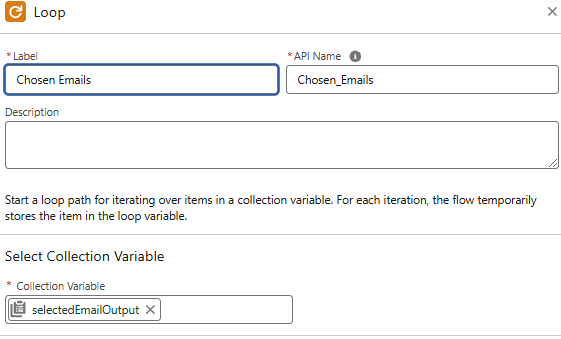
- Loop through the collection of selected cases from the screen component and assign values to a record variable
- Assign the record variable to a collection
- Install and use a Invocable Method from Apex Class (Install Link Included) to generate a new Thread Id
- Create the newly threaded email messages in bulk
- Show a success Screen for the user
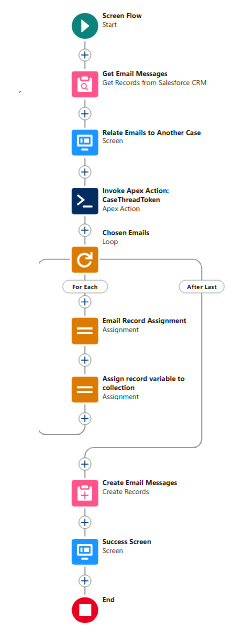
Here is the final flow

Flow RESOURCES
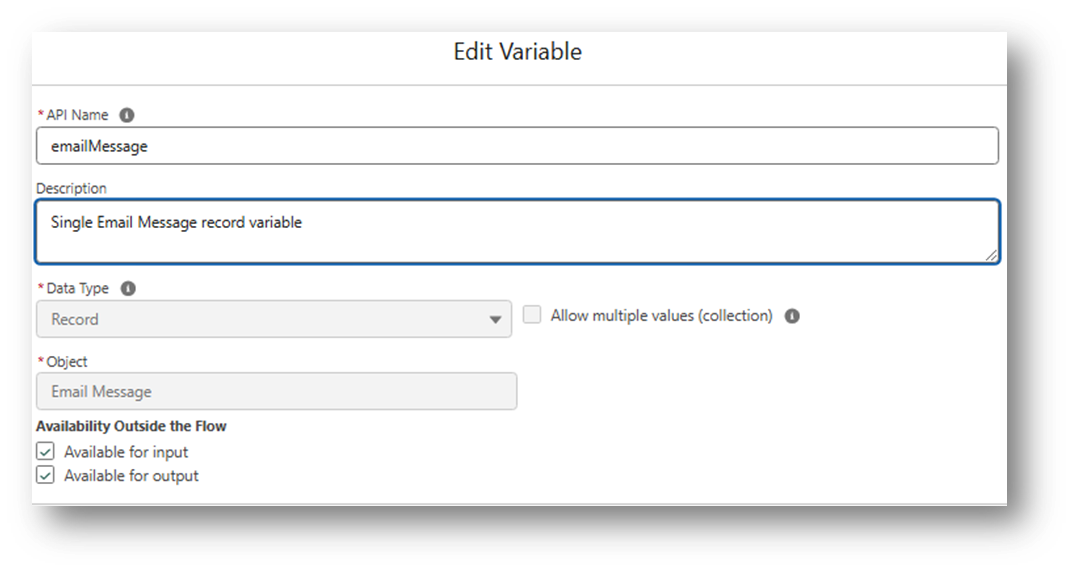
Record variables

Record Collection Variables


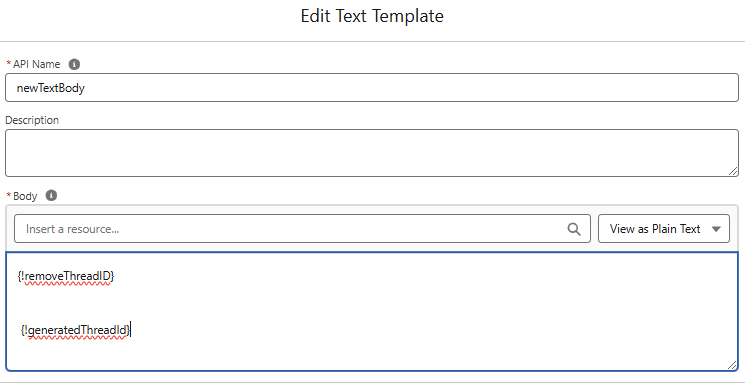
Text templates, variables & formulas


SUBSTITUTE({!Chosen_Emails.TextBody}, RIGHT({!Chosen_Emails.TextBody}, 33), "")
SUBSTITUTE( {!Chosen_Emails.HtmlBody}, RIGHT( {!Chosen_Emails.HtmlBody}, 50), "")
Flow Components
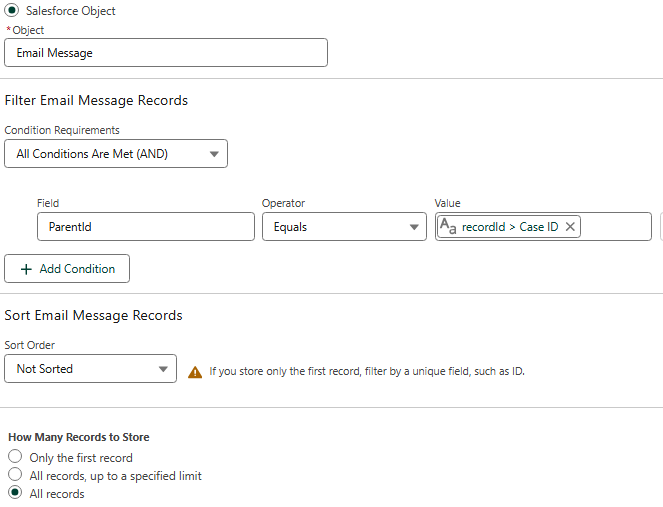
Retrieves all email messages related to our originating case record


Our screen component uses a custom label and 2 custom components you can install here & here. Alternatively, you can use the standard Lookup & Datatable components. The Label styles the Display-Text component with a dark blue background and white text. The Datatable setup relies on the results from our Get Email Message records. I also assign the selected rows from the Datatable as a manually assigned output record collection variable to use later.


We can use a custom Apex Action. You can install it here. With it, we can generate a thread Id as a manually assigned output variable.


We can use a custom Apex Action. You can install it here. With it, we can generate a thread Id as a manually assigned output variable.

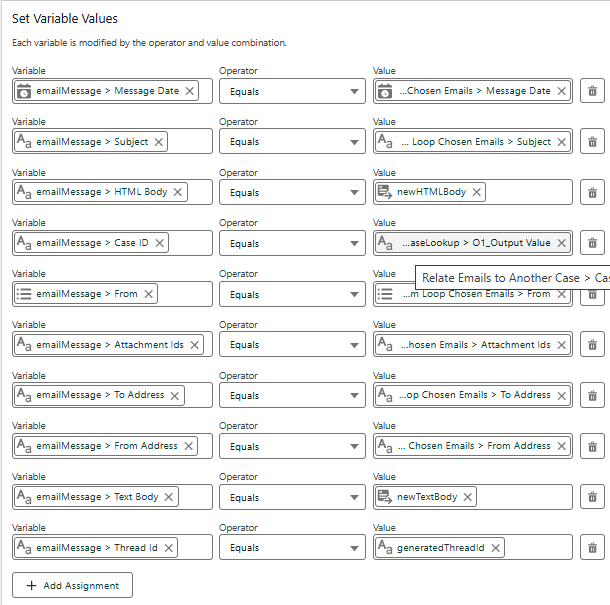
The first assignment element is to map our new email message variable record values. Use the Text Templates from the Flow Resources section shown above to assign the new body and html for the email (which includes the new thread id in the body). Finally, assign the new case id that the user chose from the screen’s lookup field. The last variable for “Thread Id” is a custom text field that I created on the Email Message object that I am using to add the new generated thread Id to, mostly for validation purposes

The 2nd assignment element is to add the current record from the loop to the collection

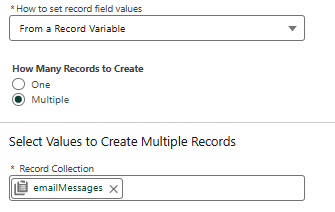
Create all the email messages in bulk by using the collection from the loop

Last, I include a success screen for the user that uses another custom Label that styles the text with a green background in the LDS styling.


Update ** This idea has been around for a long time. It is finally on the roadmap and planned for the next release. It is available in preview sandboxes!